

What Charger Do I Need for My Lenovo ThinkPad? (Avoid Compatibility Mistakes)
Disclosure: As an Amazon Associate, I earn from qualifying purchases. This comes at no additional cost to you.
Quick Answer: What Charger Do You Need for a ThinkPad?
Most modern Lenovo ThinkPad laptops use USB-C chargers rated between 45W and 65W, while many older or business-class models use the Slim Tip (yellow rectangular) connector at 65W to 90W. The correct choice depends on your exact model and port type, but if your ThinkPad has a USB-C charging port, a 65W USB-C charger is the safest and most widely compatible option.
👉 Best Overall Pick (Most Users):
A reliable 65W USB-C charger that supports USB Power Delivery (PD) and includes built-in safety protections will work for the majority of ThinkPad models and provides a good balance of speed, compatibility, and long-term reliability.
| Charger | Type | Wattage | Best For | Why It Stands Out | Link |
|---|---|---|---|---|---|
| Anker Nano II 65W GaN Charger | USB-C | 65W | Most ThinkPads (modern) | Trusted brand, compact GaN design, consistent performance | 🔗 Check price on Amazon |
| Lenovo 65W USB-C Adapter | USB-C (OEM) | 65W | Users who want official Lenovo | Guaranteed compatibility, consistent output | 🔗 Check price on Amazon |
| INIU 65W GaN USB-C Charger | USB-C | 65W | Budget buyers | Lower cost, includes cable, strong value | 🔗 Check price on Amazon |
| Lenovo 65W Slim Tip Adapter | Slim Tip | 65W | Older ThinkPads | Correct connector for older (pre USB-C) ThinkPads | 🔗 Check price on Lenovo |
Important: Charger compatibility can vary by specific ThinkPad model and configuration. While this guide is designed to simplify the process, always verify your laptop’s model number, connector type, and required wattage before purchasing.
Identify Your ThinkPad Model (Fastest Method)
Before choosing a charger, you need your exact ThinkPad model. This takes under a minute and prevents buying the wrong charger.
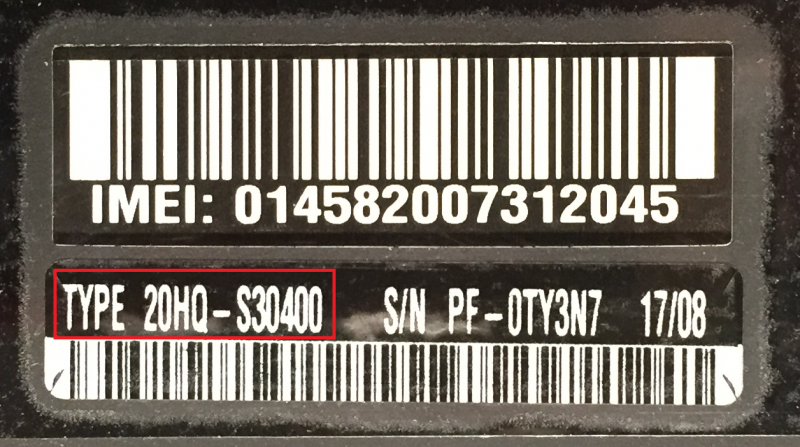
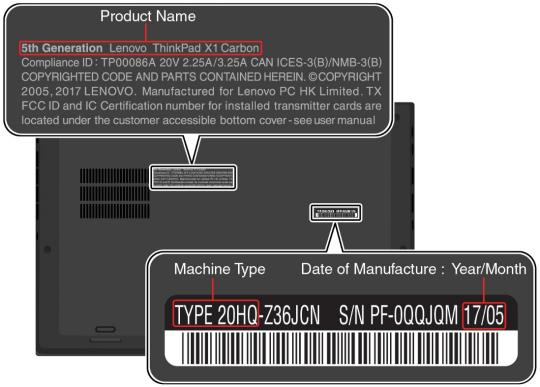
Method 1: Check the Bottom Label (Fastest)
Flip your laptop over and look for a sticker labeled:
- “Type” or “Model”
- MTM (Machine Type Model)
Examples:
- ThinkPad T480
- ThinkPad X1 Carbon Gen 7
- Type: 20L5-S1AB00
👉 This is the most reliable method and works even if the laptop won’t turn on.
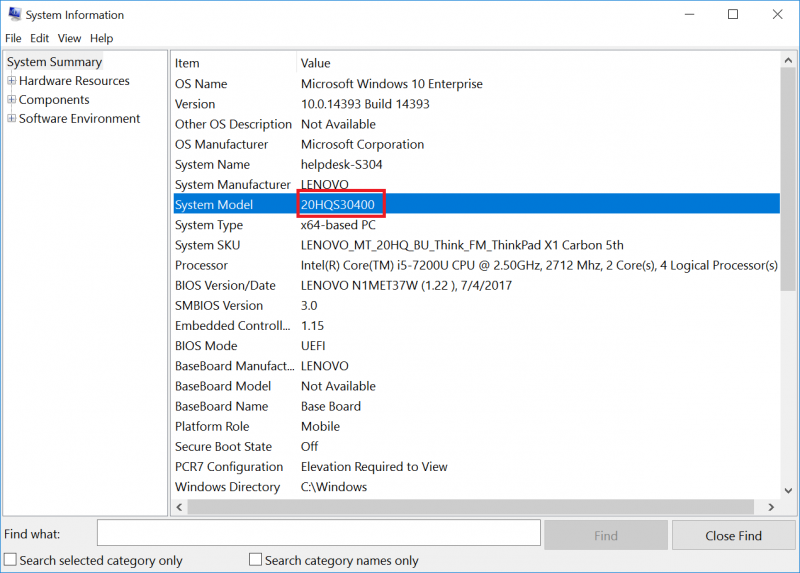
Method 2: Use Windows System Information
If your laptop powers on:
- Press Windows + R
- Type:
msinfo32 - Look for:
- System Model
You’ll see something like:
- “ThinkPad T14 Gen 2”
Method 3: Check in Settings (Simplest UI)
- Go to Settings → System → About
- Look under:
- Device specifications
This may show a simplified model name (still useful).
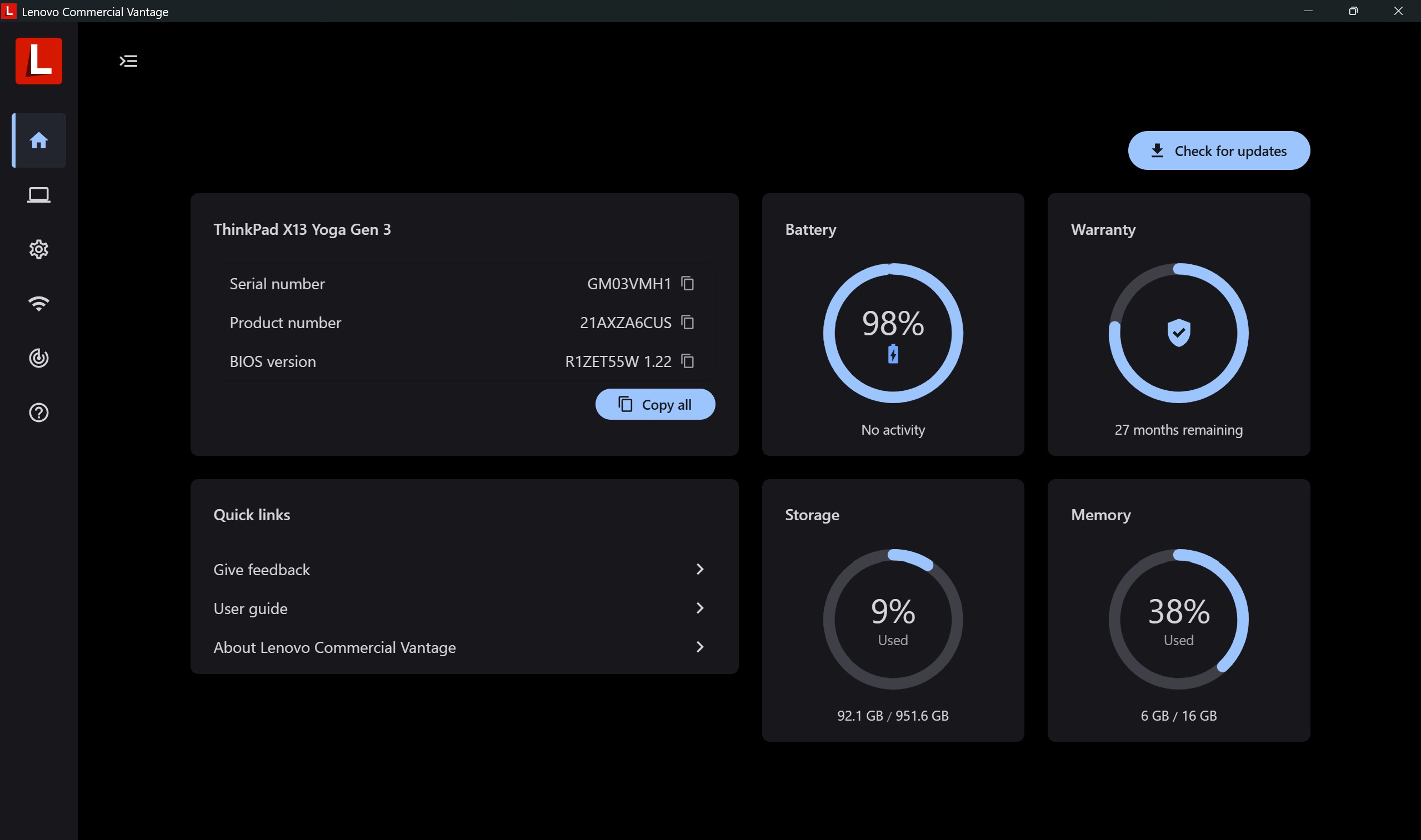
Method 4: Use Lenovo Vantage (If Installed)
Lenovo Vantage
- Open the app
- Your exact model is shown on the dashboard
👉 Bonus: It may also show charger compatibility details.
What to Do With Your Model
Once you have it, you’re ready for the next step:
- Match your model to the correct charging port type (USB-C vs Slim Tip)
- Then choose the correct wattage (45W, 65W, or 90W)
👉 If you’re unsure, the safest default for most modern ThinkPads is:
- 65W USB-C charger
Common Mistake to Avoid
Many listings say:
“Compatible with ThinkPad”
That’s not enough.
Always verify:
- Connector type
- Required wattage
Common Charger Types for ThinkPads

This is where most people get it wrong. ThinkPads don’t all use the same charger—there are three main connector types, and choosing the wrong one is the fastest way to waste money.
USB-C (Most Modern ThinkPads)
What it looks like:
- Small, oval-shaped port (same as many phones and tablets)

Common on:
- Newer ThinkPads (T14, X1 Carbon, X13, etc.)
- Most models from ~2018 onward
Typical wattage:
- 45W (light use)
- 65W (most common)
- 90W+ (workstations)
👉 Best for most users:
Why it matters:
- Universal standard (USB Power Delivery)
- Easier to replace and upgrade
- Safer and more efficient when using quality chargers
Slim Tip (Yellow Rectangular Connector)
What it looks like:
- Yellow, rectangular plug (very distinct)

Common on:
- Older ThinkPads (T440, T450, X250, etc.)
- Some business models before USB-C transition
Typical wattage:
- 65W or 90W
👉 What to use:
Important note:
Most Slim Tip chargers on Amazon are third-party replacements. While some work fine, quality can vary. If reliability matters, it’s safer to use an official Lenovo adapter.
Barrel Connector (Round Tip – Legacy Models)
What it looks like:
- Round plug (older style)

Common on:
- Much older ThinkPads (pre-2013 era)
Typical wattage:
- Varies widely (often 65W–90W)
👉 Reality check:
- If your ThinkPad uses this, it’s likely quite old
- Replacement chargers are less standardized
Quick Comparison
| Connector | Era | Best Option |
|---|---|---|
| USB-C | Modern ThinkPads | Anker / INIU 65W |
| Slim Tip | Mid-generation ThinkPads | Lenovo OEM |
| Barrel | Older models | Model-specific only |
How to Tell Which One You Have (Fast)
-
Look at the port on your laptop
- Oval → USB-C
- Yellow rectangle → Slim Tip
- Round → Barrel
👉 No guesswork needed—this is visual.
Common Mistakes to Avoid
- Buying USB-C when your laptop uses Slim Tip
- Choosing too low wattage (causes slow charging or failure)
- Assuming “ThinkPad compatible” means it will work
Voltage, Wattage, and Why It Matters
This is where most compatibility mistakes happen—but it’s actually simple once you break it down.
The Two Things That Matter
Voltage (V) → Must Match
- Your ThinkPad is designed for a specific voltage (usually 20V)
- Using the wrong voltage can:
- Prevent charging
- Potentially damage your device
👉 Rule: Always match the voltage exactly
Wattage (W) → Can Be Equal or Higher
- Wattage = how much power the charger can deliver
- Formula (you don’t need to show, but useful to understand):
- Watts = Volts × Amps
👉 Rule:
- Equal wattage → perfect
- Higher wattage → safe (device only draws what it needs)
- Lower wattage → problems
Quick Wattage Guide
| Wattage | Best For | What Happens |
|---|---|---|
| 45W | Light use / smaller ThinkPads | May charge slowly |
| 65W | Most ThinkPads | Ideal balance |
| 90W+ | Workstations / heavy use | Faster charging, more headroom |
What Happens If You Choose Wrong
-
Too low (e.g., 45W on a 65W laptop):
- Slow charging
- Battery drain during use
- “Plugged in, not charging” message
-
Higher than needed (e.g., 90W on 65W laptop):
- Completely safe
- No damage
- Often more stable under load
What to Look for on the Charger Label
Most chargers list something like:
Output: 20V ⎓ 3.25A (65W)
That tells you:
- Voltage = 20V
- Amperage = 3.25A
- Wattage = 65W
👉 This should match your laptop’s requirements.

Recommended Picks (Based on Wattage)
🔌 Best 65W USB-C Charger (Most Users)
-
Anker 65W (Best Overall)
👉 This covers the majority of modern ThinkPads
🟨 Best 90W Slim Tip Charger (Older Models Needing More Power)
- Lenovo 90W Slim Tip (OEM)
👉 Only needed for certain older or higher-performance models
Common Mistakes to Avoid
- Assuming all USB-C chargers are the same
- Buying a lower wattage “because it’s cheaper”
- Ignoring the output label
Power Adapter Specifications Explained (Without the Jargon)
Most charger listings throw around specs that look technical but aren’t explained clearly. Here’s what actually matters—and what you can safely ignore.
Output: The Only Spec Most People Need to Understand
This is the line that matters most. You’ll usually see something like:
Output: 20V ⎓ 3.25A (65W)

Here’s how to read it:
- 20V (Volts) → Must match your laptop
- 3.25A (Amps) → How much current it can supply
- 65W (Watts) → Total power output
👉 The relationship is:
- Watts = Volts × Amps
What matters for you:
- Match the voltage
- Choose equal or higher wattage
Input Range: Why Most Chargers Work Anywhere
You’ll often see:
Input: 100–240V ~ 50/60Hz
This means:
- The charger works globally (U.S., Europe, etc.)
- It automatically adjusts to different power systems
👉 Translation:
- You don’t need to worry about this unless traveling internationally
- Even then, you usually just need a plug adapter—not a different charger
Safety Certifications (This is Where Quality Shows)
This is one of the biggest differences between a reliable charger and a risky one.
Look for markings like:
- UL (Underwriters Laboratories)
- CE (European conformity)
- FCC

These indicate:
- Electrical safety testing
- Protection against overheating, overcurrent, short circuits
👉 Why this matters:
Cheap, uncertified chargers can:
- Overheat
- Deliver unstable power
- Shorten battery lifespan
USB-C PD (Power Delivery) — The One Feature to Look For

If you’re using a USB-C charger:
- Make sure it supports USB Power Delivery (PD)
This ensures:
- Proper communication with your ThinkPad
- Correct voltage negotiation
- Safe, efficient charging
👉 All our recommended picks (Anker, INIU, etc.) support this.
What You Can Ignore
You’ll see a lot of marketing fluff like:
- “Super fast charging”
- “Intelligent chip”
- “Advanced technology”
👉 These don’t matter unless:
- The core specs (voltage, wattage, safety) are correct
Quick Checklist
Before buying a charger, confirm:
- ✔ Voltage matches (usually 20V)
- ✔ Wattage is equal or higher (65W recommended)
- ✔ USB-C supports Power Delivery (if applicable)
- ✔ Safety certifications are present (UL, CE, FCC)
Genuine vs. Third-Party Chargers: Pros & Cons

This is where most buyers hesitate—and where you can either lose the sale or build trust.
Let’s break it down simply.
OEM (Original Manufacturer) Chargers
These are made by Lenovo specifically for ThinkPads.
Pros
- Guaranteed compatibility
- Consistent power delivery
- Built to exact specifications
- Lower risk of issues
Cons
- More expensive
- Bulkier (older designs especially)
👉 Best for:
- Business users
- Risk-averse buyers
- Older models (especially Slim Tip)
Third-Party Chargers
These are made by other brands (Anker, INIU, etc.).
Pros
- More affordable
- Often smaller (GaN technology)
- Widely available
- Can include extras (like cables, multi-port)
Cons
- Quality varies widely
- Some listings are misleading
- Cheap options can be unreliable
👉 Best for:
- Most modern ThinkPad users
- Anyone using USB-C
- Buyers looking for value
The Reality (What Actually Matters)
Not all third-party chargers are equal.
There’s a big difference between:
👉 This is where most people go wrong.
What to Look For (This is your Filter)
Before buying a third-party charger, check:
- ✔Correct wattage (65W recommended)
- ✔USB-C Power Delivery (PD) support
- ✔Safety certifications (UL, CE, FCC)
- ✔Brand transparency (clear specs, real reviews)
If a listing is vague or overloaded with buzzwords, skip it.
Recommended Approach
- USB-C ThinkPads → Go with a trusted third-party charger
-
Slim Tip ThinkPads → Stick with OEM
- 👉 Lenovo official adapter (via Lenovo.com)
The Honest Bottom Line
- Third-party chargers are completely safe when chosen correctly
- OEM chargers are safer by default, but not always necessary
- The risk isn’t “third-party”—it’s low-quality, unverified products
Top Recommended Chargers (Quick Picks)
If you just want a reliable charger without overthinking it, start here.
⭐ Best Overall: Anker Nano II 65W USB-C Charger

- The safest, most balanced choice for most ThinkPad users
- Reliable power delivery, compact GaN design, and strong brand reputation
👉 Best for: Most modern ThinkPads using USB-C
👉 Why pick this: Minimal risk, consistent performance, widely trusted
💼 Best OEM Option: Lenovo 65W USB-C Adapter

- Official Lenovo charger designed specifically for ThinkPads
- Guaranteed compatibility with supported USB-C models
👉 Best for:
- Users who want zero compatibility risk
- Business or work-critical setups
👉 Why pick this:
- No guesswork, no variability—just works
💰 Best Value: INIU 65W USB-C Charger (Includes Cable)

- A more affordable option that still performs well for everyday use
- Often includes a USB-C cable, which adds real value
👉 Best for: Budget-conscious buyers who still want reliability
👉 Why pick this: Lower cost without dropping into “cheap and risky” territory
⚡ Best for Older Models (Slim Tip): Lenovo 65W Slim Tip Adapter

- The correct choice for ThinkPads that use the yellow rectangular connector
- Official Lenovo adapter ensures proper compatibility and stable power
👉 Best for: Older (pre-USB-C) ThinkPads
👉 Why pick this: Eliminates compatibility guesswork completely
🔑 Quick Recommendation (Don’t Overthink It)
- Want the safest all-around choice → Anker 65W
- Want official Lenovo hardware → Lenovo USB-C Adapter
- Want to spend less → INIU 65W
- Have a Slim Tip port → Lenovo Slim Tip
Common Mistakes to Avoid
This is where most people go wrong—and fixing these mistakes is often the difference between a charger that works perfectly and one that wastes your time and money.
1. Buying the Wrong Connector Type

This is the #1 issue.
- USB-C ≠ Slim Tip ≠ Barrel
- Even if the wattage is correct, the wrong connector simply won’t work
👉 Fix:
- Look at your port first (don’t rely on product titles)
- Match:
- Oval → USB-C
- Yellow rectangle → Slim Tip
2. Choosing Too Low Wattage
Going cheaper by dropping wattage usually backfires.
Example:
- Using a 45W charger on a laptop that needs 65W
What happens:
- Slow charging
- Battery drains while plugged in
- “Plugged in, not charging” errors
👉 Fix:
- Stick with 65W for most ThinkPads
- Higher wattage is safe—lower is not
3. Ignoring Build Quality

This is where people get burned.
Not all chargers are created equal:
- Cheap internals
- Poor heat management
- Inconsistent power delivery
👉 Fix:
- Use trusted brands (Anker, INIU, or Lenovo 65W USB-C Adapter)
- Look for:
- Clear specs
- Safety certifications (UL, CE)
- Consistent reviews
4. Trusting “Compatible with Everything” Listings
If a listing claims compatibility with dozens of models without specifics, that’s a red flag.
👉 These often:
- Use generic parts
- Cut corners on safety
- Create inconsistent results
👉 Fix:
- Match your exact model + connector + wattage
- Avoid vague listings
5. Skipping the Model Check
Guessing based on “it looks right” leads to returns and frustration.
👉 Fix:
- Confirm your ThinkPad model first (Section 2)
- Then match:
- Connector type
- Wattage
6. Overthinking It (Yes, This Happens Too)

Some buyers get stuck comparing endless options.
👉 Reality:
- You don’t need 20 choices
- You need one correct charger
👉 Fix:
- USB-C → Anker (best overall) or INIU (value)
- Want zero risk → Lenovo OEM
- Slim Tip → Lenovo only
Troubleshooting Charger-Related Issues
If your ThinkPad isn’t charging properly, the issue isn’t always obvious. Before replacing your charger, here are the most common problems—and how to quickly identify them.
Not Charging at All
Possible causes:
- Wrong charger (connector or wattage mismatch)
- Faulty cable or adapter
- Dirty or damaged charging port

What to check:
- Confirm the connector type (USB-C vs Slim Tip)
- Try a different outlet
- Inspect the cable for damage
👉 If nothing changes, the charger itself is likely the issue.
Slow Charging
Possible causes:
- Charger wattage too low (e.g., 45W instead of 65W)
- Heavy laptop usage while charging
- Non–Power Delivery USB-C charger
What to check:
- Verify wattage (65W recommended for most ThinkPads)
- Make sure your charger supports USB-C PD
👉 This is one of the most common signs you need a better charger.
“Plugged In, Not Charging”
Possible causes:
- Insufficient power delivery
- Battery protection settings
- Charger not meeting system requirements
What to check:
- Restart your laptop
- Check power settings in Lenovo Vantage
- Try a higher wattage charger
Loose or Intermittent Connection
Possible causes:
- Worn cable
- Loose port
- Poor-quality connector
What to check:
- Does the connection drop when you move the cable?
- Does the charger feel loose in the port?
👉 This often points to a failing cable or low-quality charger.

When to Replace Your Charger
If you’re seeing:
- Inconsistent charging
- Overheating
- Visible cable damage
- Repeated connection issues
👉 It’s usually not worth troubleshooting further.
If your charger is failing, replacing it is often the simplest fix.
Recommended Replacement Options
- ⭐ Best Overall → Anker 65W USB-C
- 💼 OEM Option → Lenovo 65W USB-C Adapter
- 💰 Best Value → INIU 65W USB-C
- 🟨 Slim Tip → Lenovo OEM Slim Tip
Final Recommendation: Choose the Right Charger
If you’ve made it this far, you don’t need more options—you need a clear decision.
The Simple Answer (For Most People)
-
If your ThinkPad uses USB-C →
Go with a 65W USB-C charger
👉 ⭐ Best Overall: Anker 65W USB-C
👉 💼 Want zero risk: Lenovo 65W USB-C Adapter
👉 💰 Want to spend less: INIU 65W (includes cable)
For Older ThinkPads
-
If your laptop has a yellow rectangular port →
You need a Slim Tip charger (65W or 90W)
👉 🟨 Best choice: Lenovo OEM Slim Tip adapter (via Lenovo.com)
If You’re Still Unsure
Stick with this:
A 65W USB-C charger will work for most modern ThinkPads and is the safest default choice.
Final Tip (This Saves People From Bad Purchases)
Don’t overthink it.
- Match your port type
- Choose the right wattage
- Stick with a trusted option
That’s it.
🔗 Quick Links (Pick One and You’re Done)
- ⭐ Best Overall → Anker 65W USB-C
- 💼 OEM Option → Lenovo 65W USB-C Adapter
- 💰 Best Value → INIU 65W USB-C
- 🟨 Slim Tip → Lenovo OEM Slim Tip
TL;DR
Most modern Lenovo ThinkPads use a 65W USB-C charger, which is the safest and most compatible option. If your laptop has a yellow rectangular (Slim Tip) port, you’ll need a Lenovo Slim Tip charger instead. Always match your connector type first, then choose the correct wattage (65W for most users). If you’re unsure, a 65W USB-C charger from a trusted brand is the safest default.
🔍Frequently Asked Questions (FAQ)
What charger does a Lenovo ThinkPad use?
Most modern ThinkPads use USB-C chargers (45W–65W), while older models use the Slim Tip (yellow rectangular) connector. Very old models may use a round barrel connector.
Can I use a 65W charger on a ThinkPad that came with 45W?
Yes. Using a higher wattage charger is safe. Your laptop will only draw the power it needs.
Can I use a lower wattage charger (like 45W instead of 65W)?
You can, but it’s not recommended. A lower wattage charger may cause:
- Slow charging
- Battery drain while in use
- “Plugged in, not charging” messages
How do I know if my ThinkPad uses USB-C or Slim Tip?
Look at the charging port:
- Oval port → USB-C
- Yellow rectangular port → Slim Tip
- Round port → Barrel (older models)
Do all USB-C chargers work with ThinkPads?
No. The charger must support USB Power Delivery (PD) and provide enough wattage (typically 65W). Not all USB-C chargers meet these requirements.
Is it safe to use third-party chargers for ThinkPads?
Yes—if you choose a reputable brand with:
- Correct wattage
- USB-C PD support
- Safety certifications (UL, CE, FCC)
Avoid cheap, unverified chargers.
What happens if I use the wrong charger?
Depending on the mismatch, you may experience:
- No charging
- Slow charging
- System warnings
- Potential long-term battery issues
What is the best charger for most ThinkPads?
For most users, a 65W USB-C charger is the best option because it offers:
- Broad compatibility
- Reliable performance
- Safe charging
Do I need an official Lenovo charger?
Not always. Official Lenovo chargers offer guaranteed compatibility, but high-quality third-party chargers can perform just as well for USB-C models.
About Author

Lorem Ipsum is simply dummy text of the printing and typesetting industry. Lorem Ipsum has been the industry's standard dummy text ever since the 1500s.
Recent Post


